
Your home office is the new perimeter
Remote work means your living room is now part of the company network. Hackers know this and are actively looking for weak home routers or unpatched personal laptops to get into corporate systems. It isn't just a theoretical risk; I've seen more targeted attacks on home setups in the last year than ever before.
A dedicated workspace, even a corner of a room, is a perimeter. It’s a space where sensitive company data is accessed and processed, making it a prime target for criminals. The Department of Homeland Security (DHS) offers extensive guidance on physical security for federal facilities, and many of those principles scale down effectively to the home office. Think about controlling access, monitoring activity, and reinforcing potential entry points.
The danger is as much digital as it is physical. Every Zoom call or Slack message is a potential entry point if your software is out of date. You don't need a perfect, unhackable bunker, but you do need enough friction to make a thief move on to an easier target.
Physical security basics
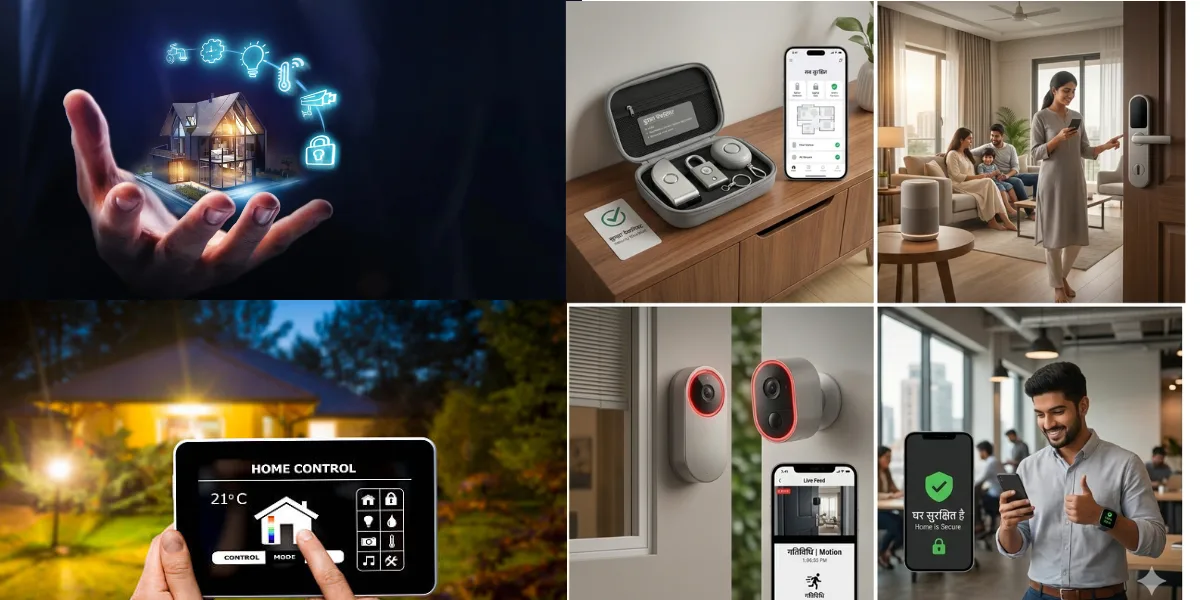
Physical security often gets overlooked in the context of remote work, but it's the first line of defense. Start with the basics: reinforcing doors and windows. Solid core doors are much harder to breach than hollow-core ones. Consider adding a deadbolt lock with a reinforced strike plate. Security film on windows can make them significantly more resistant to breakage.
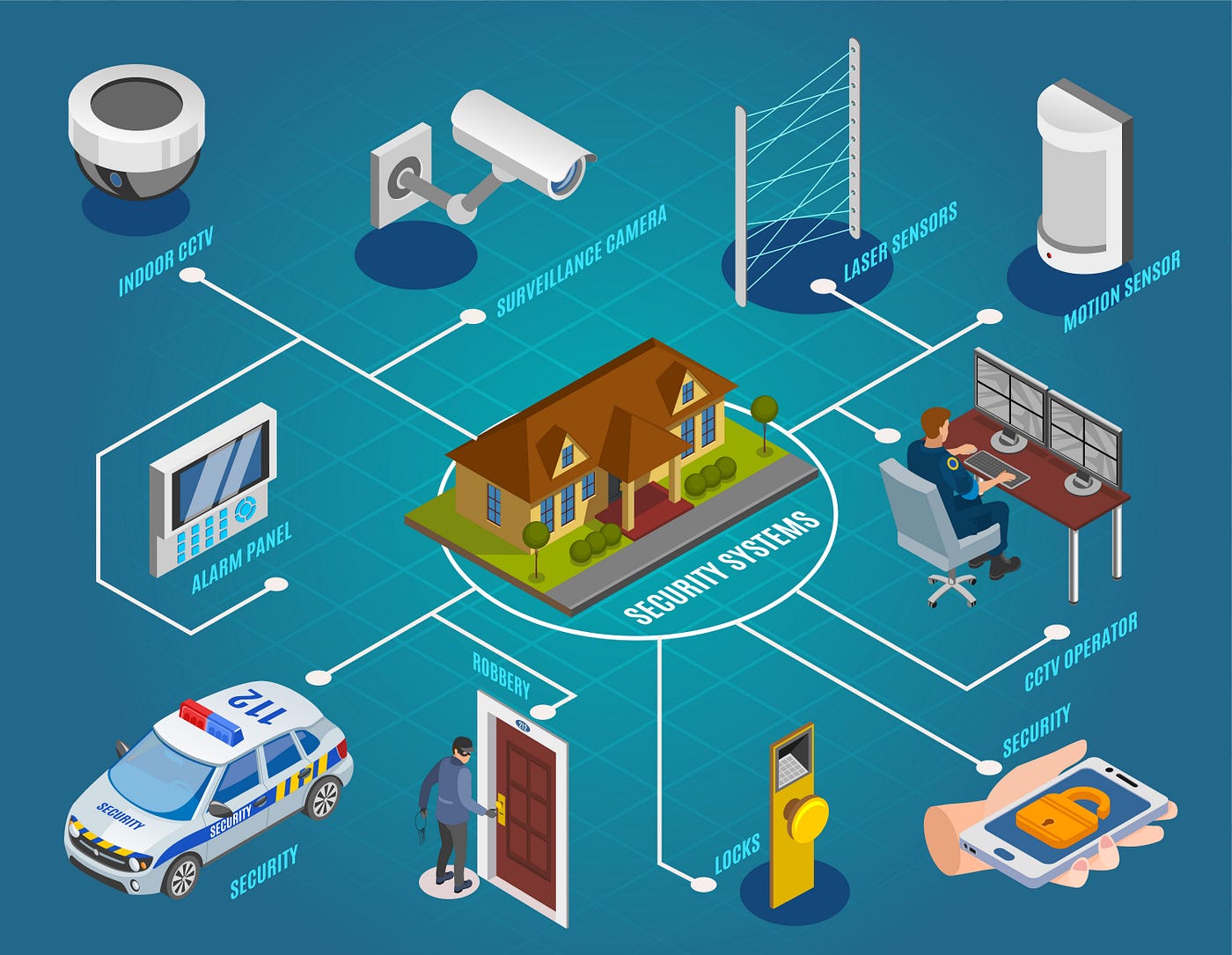
An alarm system is a worthwhile investment. Even a basic system can deter burglars and provide peace of mind. According to the DHS guidance on physical security assessments, a thorough assessment should consider all potential entry points, including windows, doors, and even skylights. I recommend performing a "walk-around’ of your home office area, identifying any vulnerabilities from an intruder"s perspective.
Think in layers. A doorstop is a start, but it works better if you also have a deadbolt and a motion-sensing light outside. I always tell people to trim the hedges near their windows—if a neighbor can see your office window from the street, a burglar has nowhere to hide while they're prying it open.
A self-assessment checklist, based on DHS guidance, could include: Are all doors and windows secure? Is there adequate lighting? Is the alarm system functioning properly? Are valuables visible from the street? Answering "no" to any of these questions should prompt you to take action.
Hardening your home network
Your router is the front door to your digital life. If you're still using the password printed on the side of the box, change it now. Make it long—at least 15 characters—and don't make it something obvious like your dog's name. It's the easiest fix on this list, yet most people skip it.
Using a Virtual Private Network (VPN) is essential, especially when connecting to public Wi-Fi. A VPN encrypts your internet traffic, protecting it from eavesdropping. Keep your router’s firmware and all software on your devices up to date. Software updates often include critical security patches.
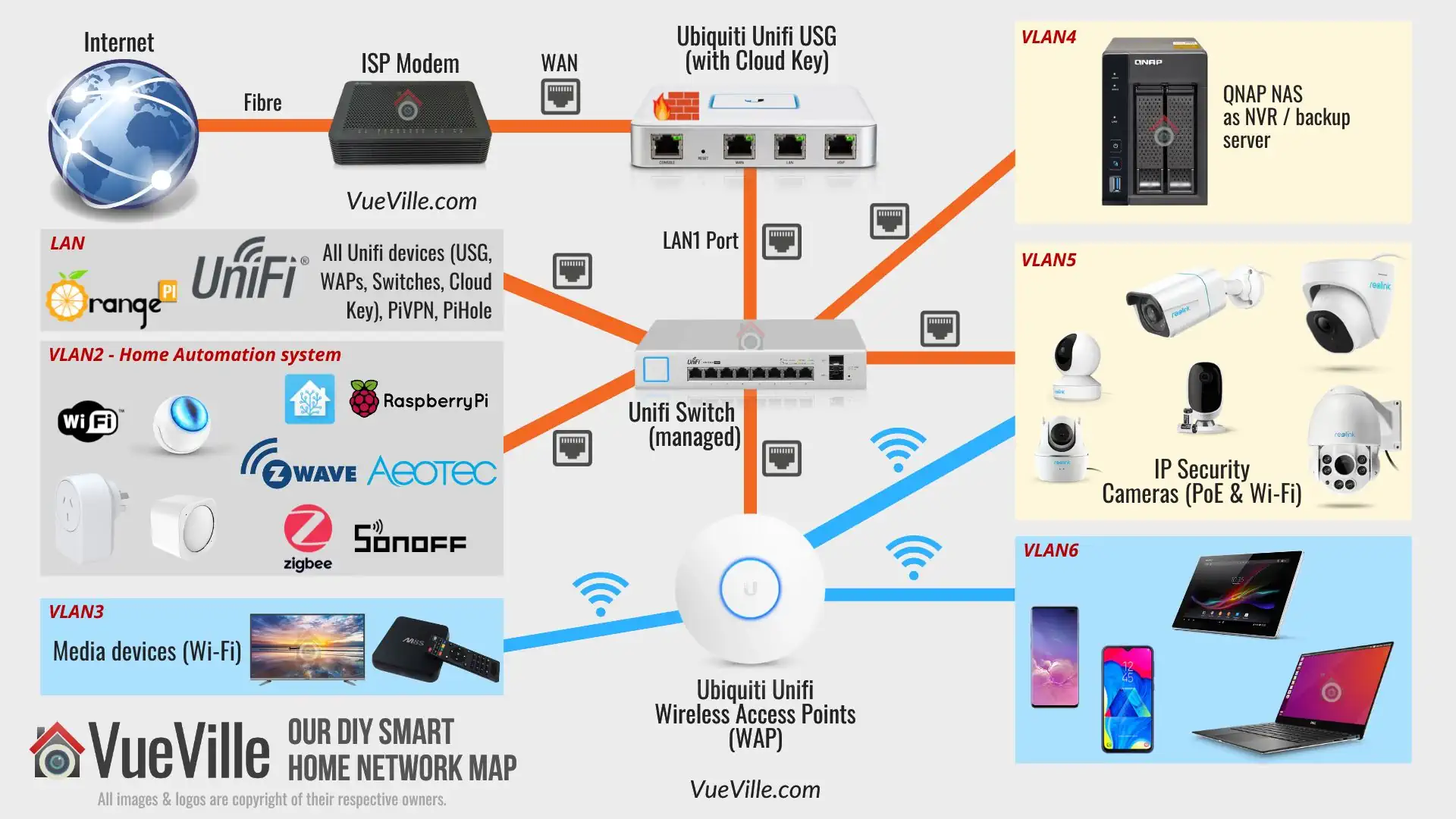
Basic firewall configuration is also important. Most routers have a built-in firewall that should be enabled. Consider network segmentation – isolating your work devices from your personal devices. This can help prevent malware from spreading and limit the impact of a security breach. This is a bit more advanced, but it’s a powerful security measure.
Securing laptops and phones
The devices you use in your home office are potential entry points for attackers. Start with strong passwords and multi-factor authentication (MFA) wherever possible. MFA adds an extra layer of security, requiring a second form of verification in addition to your password. Full disk encryption is also crucial, protecting your data even if your device is lost or stolen.
Keeping your operating systems and applications up to date is non-negotiable. Updates often include critical security patches that address known vulnerabilities. Be wary of phishing attacks – emails or messages that attempt to trick you into revealing sensitive information. Learn to identify the signs of a phishing attack, such as misspelled words, grammatical errors, and suspicious links.
Mobile device security is often overlooked. Use a passcode lock, enable remote wiping, and be mindful of app permissions. Only install apps from trusted sources. Regularly review your app permissions to ensure that apps aren’t accessing data they shouldn’t.
Device Security Checklist for Remote Workers
| Device Type | Password Strength | Multi-Factor Authentication (MFA) Enabled | Disk Encryption | Anti-Malware Software |
|---|---|---|---|---|
| Laptop | Yes | Yes | Yes | Yes |
| Phone | Yes | Yes | Needs Attention | Yes |
| Tablet | Needs Attention | Needs Attention | Needs Attention | Yes |
| Work Desktop | Yes | Yes | Yes | Yes |
| Personal Computer (used for work) | Needs Attention | Needs Attention | Needs Attention | Yes |
| Smart Speaker (if used for work communication) | No | No | N/A | Needs Attention |
Illustrative comparison based on the article research brief. Verify current pricing, limits, and product details in the official docs before relying on it.
Webcams and microphones
Webcam hacking and eavesdropping are real threats. A physical webcam cover is a simple and effective solution, preventing unauthorized access to your camera. Software controls can also be used to disable your webcam when it’s not in use. Be mindful of microphone permissions – only grant access to apps that truly need it.
Even if you think your webcam isn’t being used, it’s worth taking precautions. Attackers can remotely access your webcam without your knowledge. Be aware of your surroundings and what you say within earshot of smart speakers and other listening devices. These devices can be compromised and used to eavesdrop on your conversations.
Regularly review the privacy settings on all your devices and apps. Take control of your data and limit the amount of information you share.
Remote access risks
Many remote workers rely on remote access tools to connect to their company network. While convenient, this introduces new security risks. Always use secure remote access protocols, such as VPNs, and ensure strong authentication is enabled. Keep your remote access software up to date.
Be aware of the risks of shadow IT – employees using unauthorized remote access tools. Shadow IT can bypass security controls and create vulnerabilities. It’s crucial to follow your company’s security policies and use only approved remote access tools.
If your company provides a dedicated VPN, use it. It’s the most secure way to access company resources remotely. Understand your company's policies regarding remote access and data security.
The human element
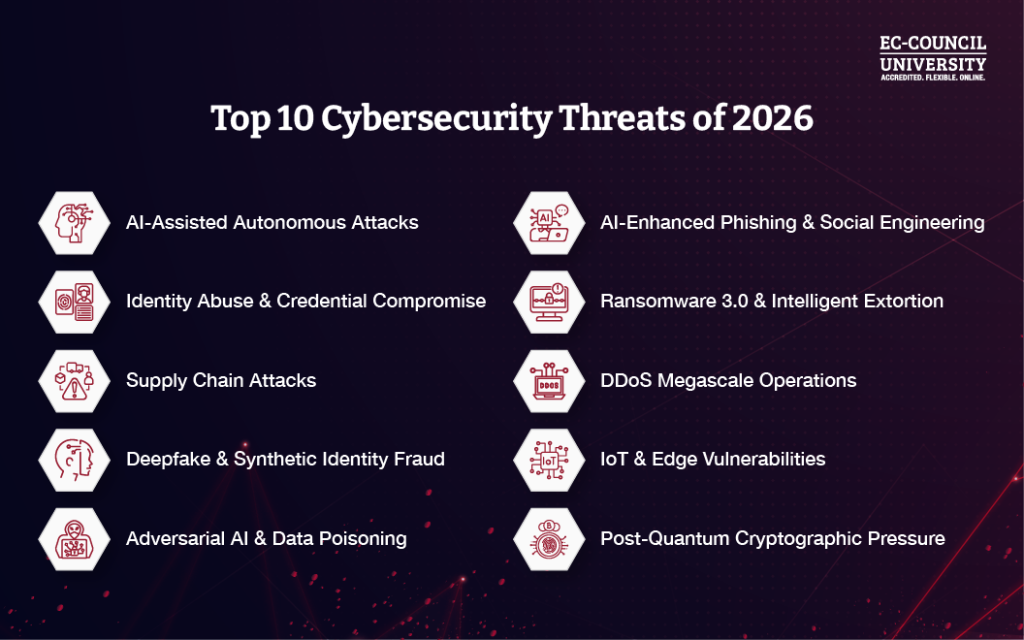
This is arguably the biggest threat to your security. Even the most technically secure system can be compromised by a clever attacker who targets the human element. Attackers use a variety of social engineering techniques, such as phishing, pretexting, and baiting, to trick you into revealing sensitive information or granting them access to your systems.
Phishing emails are designed to look legitimate, often mimicking trusted brands or organizations. Be wary of emails that ask you to click on links or download attachments, especially if they come from unknown senders. Pretexting involves creating a false scenario to trick you into divulging information. Baiting involves offering something tempting, such as a free download, to lure you into clicking on a malicious link.
Attackers are getting increasingly sophisticated. They’re using more realistic phishing emails and more convincing social engineering tactics. It’s important to be skeptical of anything that seems too good to be true. Verify requests through a separate channel, such as a phone call, before taking any action. Remember, if something feels off, it probably is.
Spot the Phish: Protecting Your Home Office
Remote work offers flexibility, but it also expands your digital footprint and makes you a potential target for phishing attacks. Cybercriminals often exploit the trust of remote workers. This quiz will test your ability to identify phishing emails – a crucial skill for protecting your home office and sensitive data. Read each email excerpt carefully and select the most suspicious option.

No comments yet. Be the first to share your thoughts!